Meeting notes
Meeting notes that stay on your Mac
Purr’s meeting mode is a private AI notetaker. It records your mic and your Mac’s audio together, so it hears everyone on a Zoom, Google Meet or Teams call without a bot joining. When you stop, it writes a transcript that says who spoke and, if you like, a summary. All of it happens on your Mac, and it’s free.
How do I record a meeting?
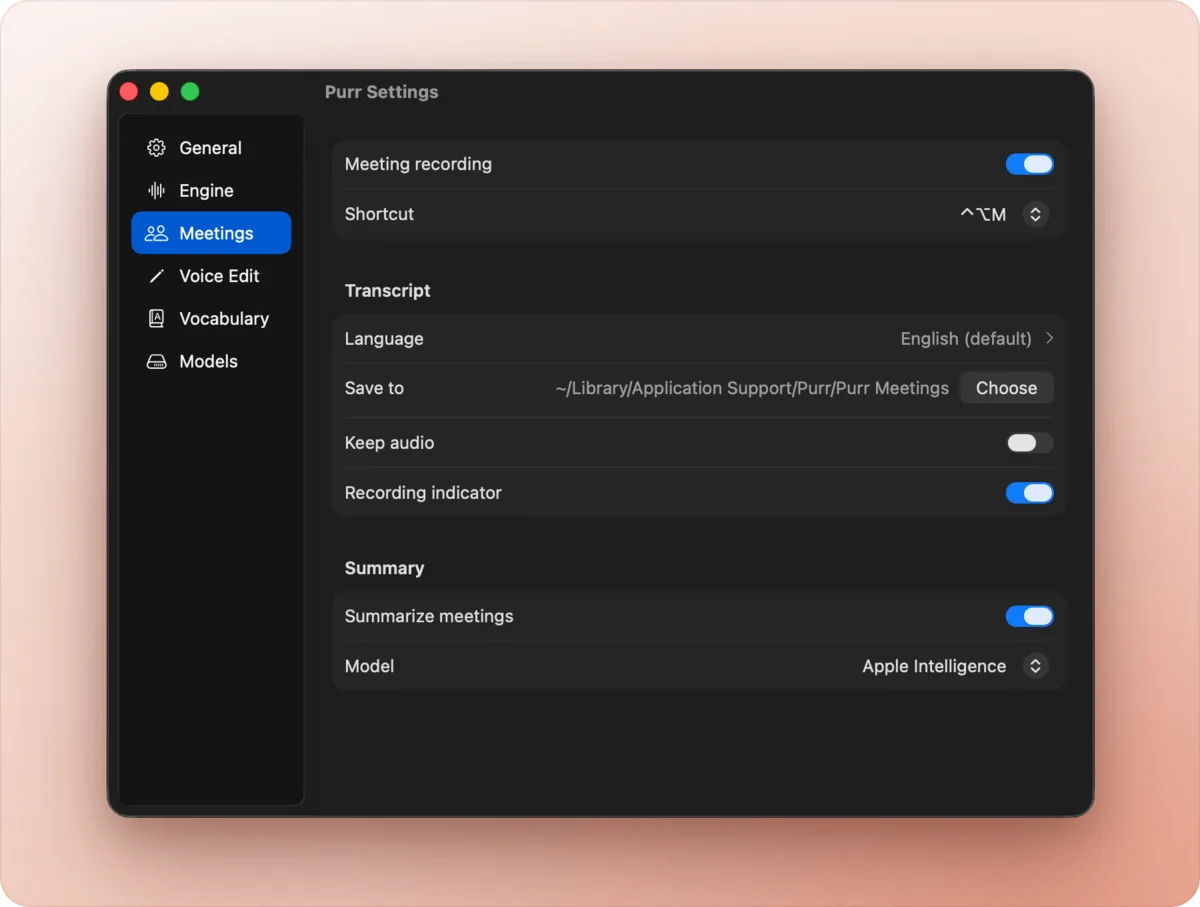
- Turn on Meetings in Settings › Meetings. It’s off until you do.
- Tap ⌃⌥ M to start recording.
- Tap ⌃⌥ M again to stop. Purr transcribes the meeting, labels the speakers and, with summaries on, writes one.
What do I get at the end?
A Markdown transcript for each meeting, with a label on each line for who spoke. With summaries on, a second file holds the summary, written in the meeting’s language. Turn on Keep audio to save the recording alongside them. Purr shows the new file in Finder when it’s done. Meetings are saved in Purr’s folder in Application Support, or in any folder you choose in Settings › Meetings.
Does it record the other people on the call?
Yes. It records your mic and your Mac’s audio output together, so remote voices are transcribed too. You’re labeled You, and they’re Speaker 1, Speaker 2 and so on. That needs macOS 14.2 or later; on 14.0 and 14.1 only your mic is recorded. When nothing plays through your Mac, like a meeting around one table, Purr tells the voices in the room apart and gives each its own Speaker label. Recording rules differ from place to place, so let people know you’re recording.
How accurate are the speaker labels?
I ran Purr’s speaker labeling on 16 meetings from the AMI corpus, recorded on a single microphone in the middle of the table. It found the right number of speakers in 15 of them. Its diarization error rate, the share of speaking time that was missed or put under the wrong speaker, was 9.6%.
Which languages work?
English and 27 more. Pick the meeting’s language in Settings › Meetings, and the summary is written in that language. Languages other than English need a one-time download of about 630 MB.
What writes the summary?
Apple Intelligence on macOS 26, or Gemma 4 E2B, a 3.35 GB download, on any version. Both run on your Mac.
How is this different from a cloud notetaker?
A cloud notetaker uploads your recording to its servers, and many send a bot into the call. Purr does neither: the audio, the transcript and the summary stay on your Mac, and it works offline. In exchange, it needs an Apple silicon Mac with macOS 14 or later, and it only records calls you’re on yourself. The comparison shows how meetings work in Wispr Flow and Superwhisper.
Common questions
Does it work with Zoom, Google Meet and Teams?
Yes. Purr records your Mac’s audio rather than hooking into the meeting app, so any call works, with no bot and no plugin.
Does it start recording on its own?
No. You start and stop it with ⌃⌥ M, so it records only when you ask.
Is meeting recording free?
Yes, along with the speaker labels and summaries. Purr has no paid plan and no account.
Related
- The best free dictation apps for Mac
- Purr vs Wispr Flow, Superwhisper and VoiceInk
- A free MacWhisper alternative for dictation and meetings
- A free Superwhisper alternative that runs on your Mac
- A free Wispr Flow alternative that runs on your Mac
- Dictation that works offline on your Mac
Spotted something out of date? Tell me and I will fix it.